

If you need to clear Jetpack image cache files, here is the short truth: you cannot do it yourself. Jetpack’s image CDN, called Site Accelerator, has no “clear cache” button. This post shows what Jetpack says on its own pages, what I saw on my own blog, and three ways out.
On 26 Oct 2026, two days after I replaced my logo with a smaller file (7.8 KB), Jetpack was still serving an older copy of 20 KB at the same address. The proof and the screenshots are below.
Last updated: 26 Oct 2026. Checked against Jetpack’s Site Accelerator pages on 26 Oct 2026.
Clear Jetpack image cache: quick answer
- You cannot purge it yourself. There is no button and no bulk option.
- Fix 1: upload the image again with a new file name.
- Fix 2: send Jetpack support the direct link of the image. They say they can usually remove only 5 to 10 this way.
- Fix 3: turn Site Accelerator off. This is the only fix that works for many images at once.
- My opinion: if you have 100 or more images, or you edit images often, do not use this CDN.
What is Jetpack Site Accelerator?
Site Accelerator (the image CDN, formerly called Photon) copies your images to Jetpack’s servers. Your visitors then get the images from Jetpack, not from your host.
You can check it in 10 seconds. Right-click an image on your site, open it in a new tab, and look at the address. If it starts with i0.wp.com (or i1, i2, i3), Jetpack is serving that image.
What Jetpack’s sales page does not tell you
I read two Jetpack pages: the sales page for the CDN and the support page for Site Accelerator. I did not find a false sentence. The problem is what the sales page leaves out. Here are the two pages side by side.
| What the sales page says | What the support page says |
|---|---|
| One-click setup, with “no coding, no complicated configuration”. | To refresh an image, you must change its file name. Random “cache buster” query strings do not work. |
| It is a CDN with no limit on the number of files. | Site Accelerator does not do cache invalidation. |
| Nothing about removing or refreshing images. | It is not possible to purge all cached images automatically. |
| Nothing about who can remove an image. | Only Jetpack support can remove an image, one link at a time. They say typically 5 to 10. Bulk and whole-site purges are not possible. |
| Nothing about how long copies stay. | Images you remove from your server expire at some point. No time is given. |
| It is free, with no upsells. | You can use it only on WordPress.com or Jetpack-connected sites. If you disconnect Jetpack, you must switch to another image CDN. |
Bulk purges or whole-site deletions for cached images are not possible.
Jetpack Site Accelerator support page, “Limitations” section
In short: the sales page talks about speed. The limits, including “no self-service purge”, are only on the support page, far down under “Limitations”.
Why a cache you cannot clear is a problem
A cache is a temporary copy. The whole idea is that you can throw it away when the original changes. With Jetpack you cannot. Your own file changes, but visitors may keep seeing the old copy.
If I cannot clear a copy of my own files, I do not call it a cache. I call it storage I do not control.
The author’s opinion
Here is the maths. Jetpack says it can typically remove 5 to 10 images by hand. A blog with 100 images that needs a refresh would need many support requests and a lot of waiting. That is not a workable process.
My own experience on this blog
I did not need to guess. I checked my own logo with PageSpeed and with the browser’s network headers. The numbers are below.
1. PageSpeed: Jetpack’s copy was bigger than my own file
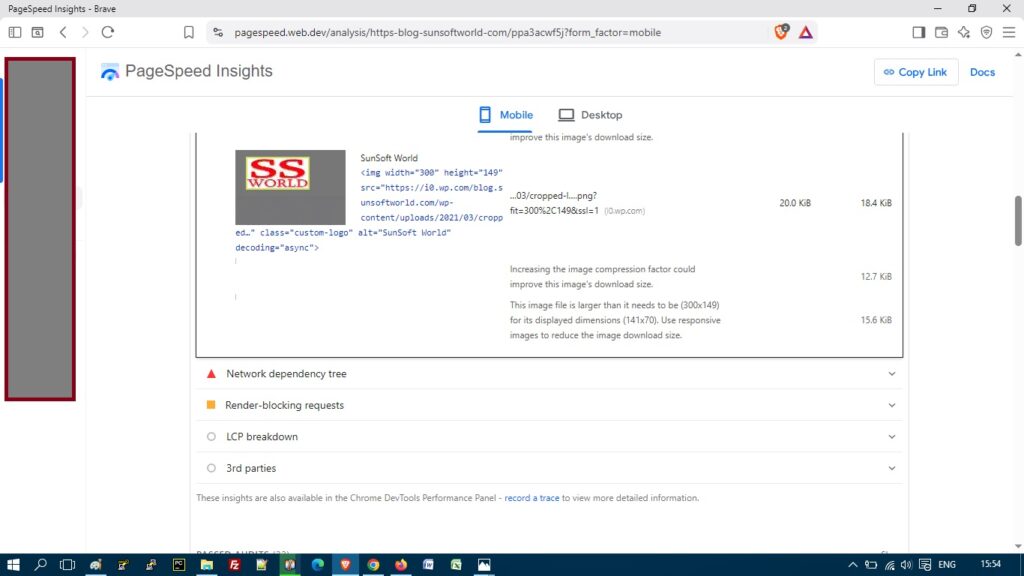
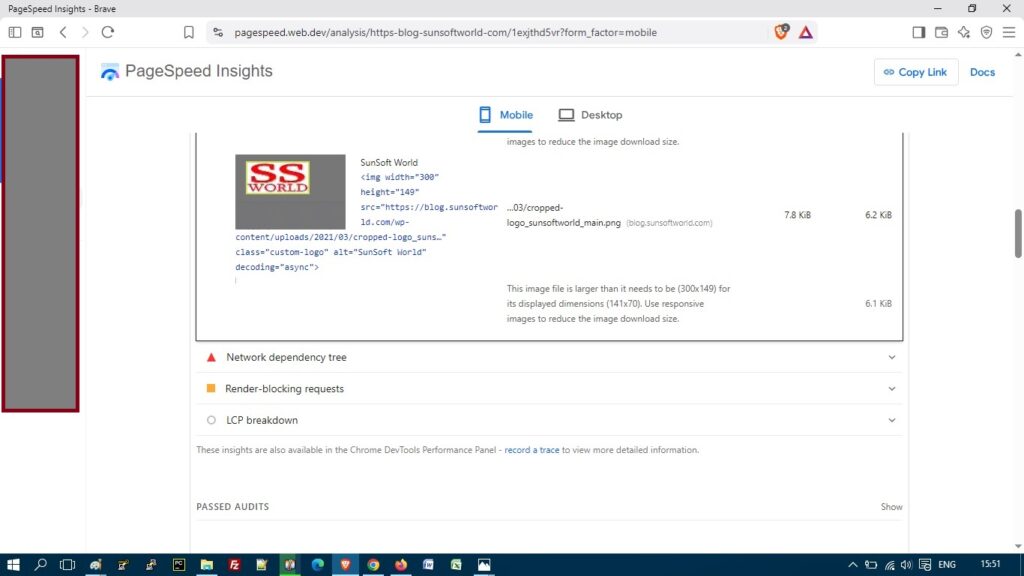
I ran PageSpeed Insights (mobile) with Site Accelerator on, and again with it off. In the “Improve image delivery” list, the same logo (300 x 149 pixels) showed this:
| Site Accelerator | Where the logo came from | File size | PageSpeed estimated saving |
|---|---|---|---|
| On | i0.wp.com (Jetpack) | 20.0 KiB | 18.4 KiB |
| Off | blog.sunsoftworld.com (my server) | 7.8 KiB | 6.2 KiB |
So in my case Jetpack’s copy was about 2.5 times bigger than my own file. This is one logo on one site, so I do not say it is the same for everyone.
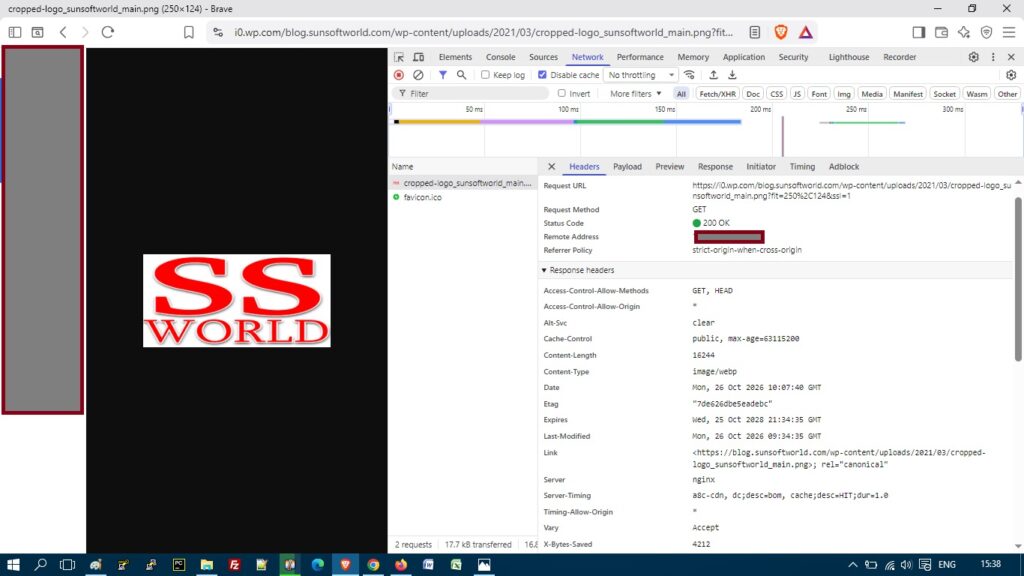
2. The headers: Jetpack kept an older copy
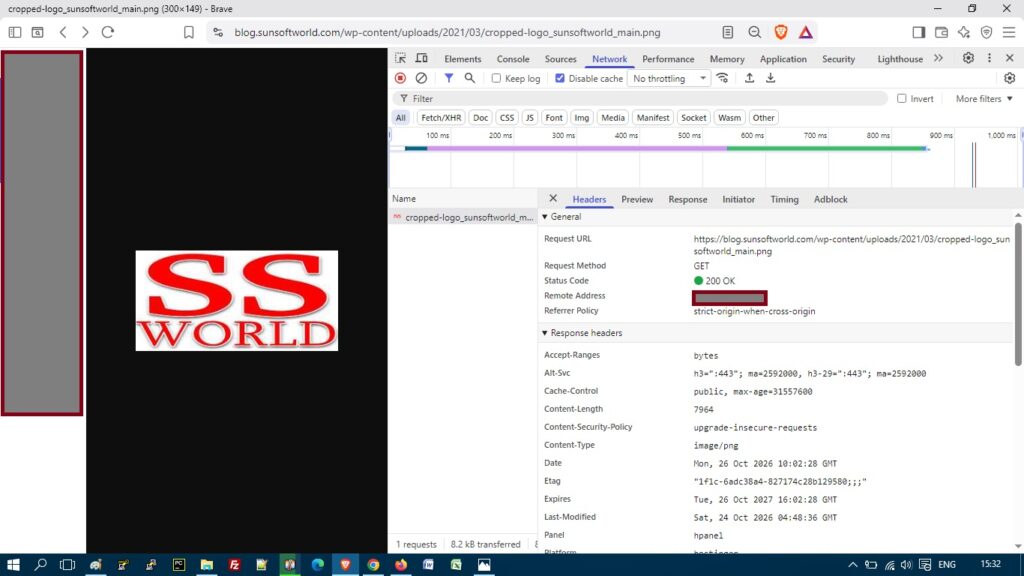
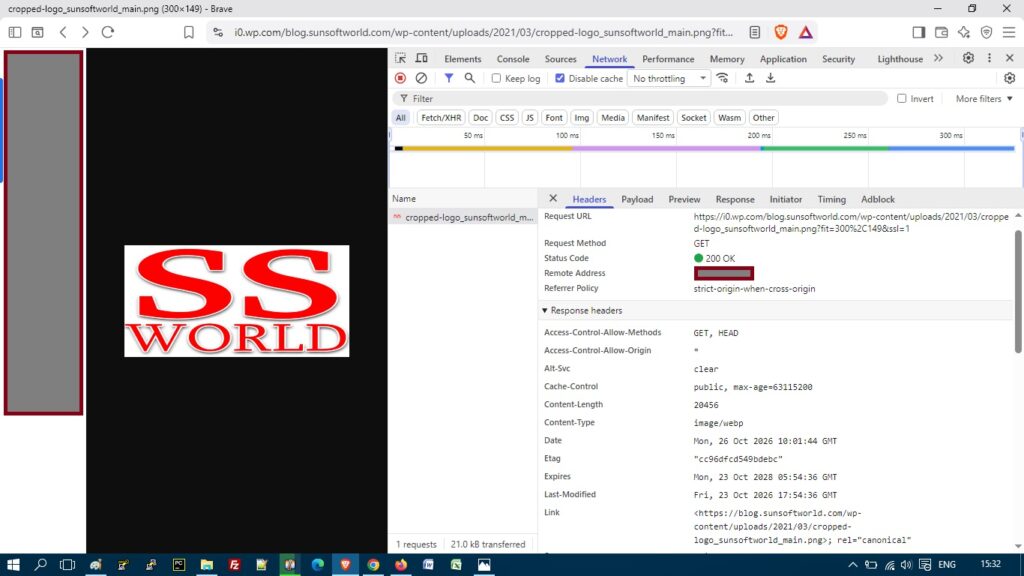
I made the logo smaller. The file on my own server is now 7,964 bytes (about 7.8 KB), last changed on 24 Oct 2026. Then I looked at what Jetpack served at the same address on 26 Oct 2026. The file name had not changed.
| Where | File size | Last modified (GMT) |
|---|---|---|
| My own server (logo) | 7,964 bytes (PNG) | 24 Oct 2026, 04:48 |
| Jetpack copy, 300 x 149 (i0.wp.com) | 20,456 bytes (WebP) | 23 Oct 2026, 17:54 |
| Jetpack copy, new size 250 x 124, made on 26 Oct | 16,244 bytes (WebP), plus 4,212 bytes saved | 26 Oct 2026, 09:34 |
Jetpack’s copy is dated 23 Oct, before I changed my file, and it was still being served on 26 Oct.
Then I asked Jetpack for a logo size that nobody had asked for before. It made a new copy of 16,244 bytes, and its own header said 4,212 bytes were saved. Add the two numbers and you get 20,456 bytes. That is the size of the old logo, not the 7,964 bytes of my new file.
My reading is that Jetpack built the new size from the old logo. Jetpack does not explain that header, so this is my reading, not a statement from Jetpack.
What I cannot say
- I did not rename the logo, so I cannot say when, or if, Jetpack would refresh it by itself. Jetpack gives no time.
- Site Accelerator was off for part of this time, so Jetpack may not have looked at my server during that time.
- This is one logo on one site, checked on one day.
It fits what Jetpack’s own page says: to refresh an image, change its file name. Jetpack also tells browsers to keep its images for about two years (a cache lifetime of 63,115,200 seconds in the headers), so a visitor’s browser can hold an old copy for a long time too.
How to check your own images in 2 minutes
- Right-click an image on your site and open it in a new tab. If the address starts with
i0.wp.com, Jetpack is serving it. - Press F12, open the Network tab, tick Disable cache, and press Ctrl+R.
- Click the image row, open Headers, and read
content-lengthandlast-modified. - Open the same image from your own address (without
i0.wp.com) and compare the two numbers.
The logo was also the largest image in some slow PageSpeed tests on my blog. I changed several things at the same time, so I cannot say which change helped my score most.
Three ways to clear Jetpack image cache
Fix 1: upload the image with a new file name
- Rename the file, for example
logo.pngtologo-2026.png. - Upload it in Media > Add New.
- Replace the image in your post, or set it as the featured image.
- Update the post and purge your own page cache.
Any new name works. The old copy may stay on Jetpack’s servers, but your page no longer points to it.
Fix 2: ask Jetpack support to remove an image
- Right-click the image on your site and open it in a new tab.
- Copy the full address that starts with
i0.wp.com. - Send it to Jetpack support.
This works for a few images. It does not work for a whole site.
Fix 3: turn Site Accelerator off
Before you switch it off: take a backup, and resize any very large images first (for example, over 2000 px wide). Without the CDN, your visitors download the full file from your host.
- Go to Jetpack > Settings > Performance and switch off Enable Site Accelerator. Your screen may show separate switches for images and static files. Switch both off.
- Wait a few minutes. Jetpack says your images keep showing and load from your own host again.
- Purge your own caches: your cache plugin and Cloudflare.
- Open an image in a new tab. The address should no longer start with
i0.wp.com.
This is a way out, not a solution. If you need to turn off a cache to control it, the cache was not doing its job.
Caches you can clear yourself
- Cloudflare: you can purge a single URL or everything from your dashboard. See the Cloudflare purge cache documentation. Free plans have purge limits, so check your plan.
- LiteSpeed Cache: a page cache with a purge tab. See the LiteSpeed Cache Toolbox documentation. It is not an image CDN.
Before you pick any CDN, find its “purge cache” page in the documentation. If you cannot find one, think twice.
Should you use Jetpack’s image CDN?
Opinion: I do not use it. I want to clear my own files when I need to.
It may suit you if…
- You have only a few images.
- You never replace an image under the same name.
- You are fine without control over the copies.
It does not suit you if…
- You edit or replace images often.
- You have many images (100 or more).
- You want to clear your own cache on demand.
Frequently asked questions
How do I clear Jetpack image cache?
You cannot do it yourself. Use a new file name, ask Jetpack support to remove single image links, or turn Site Accelerator off.
Can I clear all Jetpack cached images at once?
No. Jetpack says bulk purges and whole-site deletions of cached images are not possible.
How do I know if Jetpack is serving my images?
Open an image in a new tab. If the address starts with i0.wp.com, Jetpack is serving it.
Will my images disappear if I turn Site Accelerator off?
No. Jetpack says they keep showing and load from your own host again after a few minutes.
Next steps
- Read our guide on how to improve page speed.
- Need help with your own site? See our Services page.
Sources (checked 26 Oct 2026): Jetpack Site Accelerator support page, Jetpack CDN page, Cloudflare purge cache docs, LiteSpeed Cache Toolbox docs.